
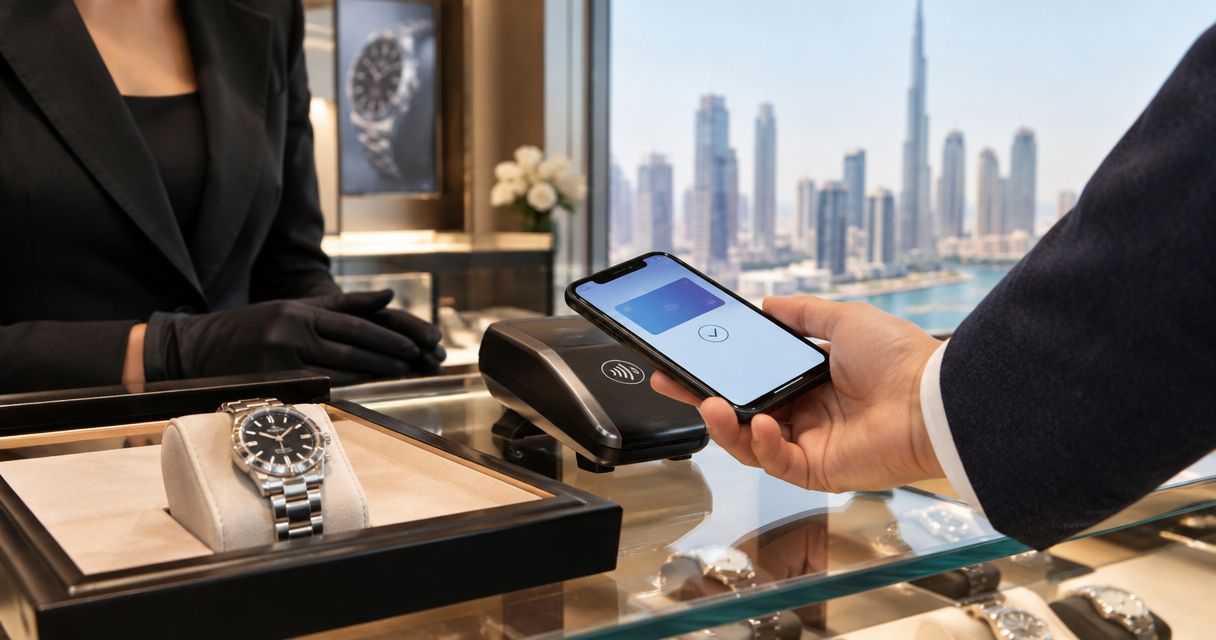
Instead of entering your card details manually, use Apple Pay at a Dubai watch retailer’s checkout when it is offered, review the payment sheet, and authenticate on your Apple device. This 2026 guide explains how to prepare your card, authorise a luxury-watch purchase, and confirm the order without confusing bank approval with a completed sale.
- Searching pay for luxury watch dubai apple pay? Confirm checkout acceptance before preparing your payment.
- Apple Pay requires a supported card, a compatible device, and merchant acceptance; authentication does not guarantee bank approval.
- Royal Watches is an online luxury-watch retailer for buyers and collectors in Dubai and beyond.
- Keep the retailer’s order confirmation and the bank’s transaction record; each answers a different question.
Why this matters
A luxury-watch purchase needs more than a successful authentication. You need the correct timepiece on the order, accurate delivery details, an approved payment, and confirmation from the retailer.
Royal Watches is a luxury-watch retailer for buyers and collectors shopping online in Dubai and beyond. When browsing Royal Watches, verify the payment methods presented for your actual order rather than treating this guide as confirmation that Apple Pay is accepted.
Apple Pay is a way to authorise payment using an eligible card. It does not authenticate a watch, establish a retailer’s authorised-dealer status, or replace the seller’s purchase terms. Complete those checks before opening the payment sheet.
Before you start
- Prepare your device and card. Use a compatible Apple device with the required security settings and a supported card added to Apple Wallet. You need access to any verification method your issuing bank requires.
- Prepare the purchase details. Confirm the watch reference, condition, accompanying documents, delivery address, and seller’s written terms. Keep the order summary accessible while paying.
- Check the non-obvious restriction. A card working in Wallet does not guarantee approval for this purchase. The retailer must offer Apple Pay for the transaction, and the issuing bank must approve the charge.
For your 2026 purchase checklist, separate these checks into device readiness, merchant acceptance, and bank approval. Passing one does not establish the others.
Do not send a seller your device passcode, card verification code, or bank authentication code to help complete an Apple Pay transaction. Enter sensitive verification information only in the appropriate device or bank-controlled interface.
Apple Wallet setup
Add and verify the intended card
- Open Wallet on your iPhone and tap + to add a card.
- Select Debit or Credit Card, then Continue, and follow the onscreen instructions. Wording can differ with your device language and software version.
- Complete the card issuer’s verification process. If verification remains incomplete, resolve it with the issuer before starting the watch checkout.
- Check that the intended card appears in Wallet. Do not assume the card used for your previous purchase is the card you want for this order.
- Review the card’s spending controls with your bank, including online purchases and international transactions when relevant to your card and the merchant.
Expected result: the intended card is added and verified in Wallet, ready to select when an eligible checkout presents Apple Pay. This confirms setup, not approval for the watch purchase.
Check the order before opening Apple Pay
Complete 3 checks before authorising: the watch identity, the seller’s terms, and the checkout details. These checks are a purchase-control checklist, not Apple Pay requirements.
Match the reference and condition against the seller’s written description. For a pre-owned watch, clarify what documents and accessories accompany that particular piece rather than assuming every example includes the same materials.
Read the delivery and return terms for the actual order. A payment method does not establish what happens if the watch arrives with a discrepancy or you want to return it.
Finally, review the recipient’s name, delivery address, contact details, and order currency. Resolve discrepancies before payment; authentication is not the right moment to negotiate changes to the order.
Online checkout and payment authorisation
Select Apple Pay and review the payment sheet
- Proceed through the retailer’s checkout until payment methods are displayed. Select Apple Pay only if the checkout offers it for your order.
- Review the payment sheet. Check the selected card, transaction total, currency, and any shipping or contact details shown.
- Change an incorrect card or address before proceeding. Do not rely on information saved from an unrelated purchase.
- Follow the device’s authentication prompt. On an iPhone with Face ID, this commonly involves double-clicking the side button and authenticating with Face ID or your passcode; other devices use their supported authentication method.
- Allow the checkout to return to the retailer’s confirmation screen. Do not close the page immediately after authenticating.
Expected result: the retailer displays a successful order confirmation, or the checkout gives you a specific failure message to investigate. A completed device authentication alone is not the expected result.
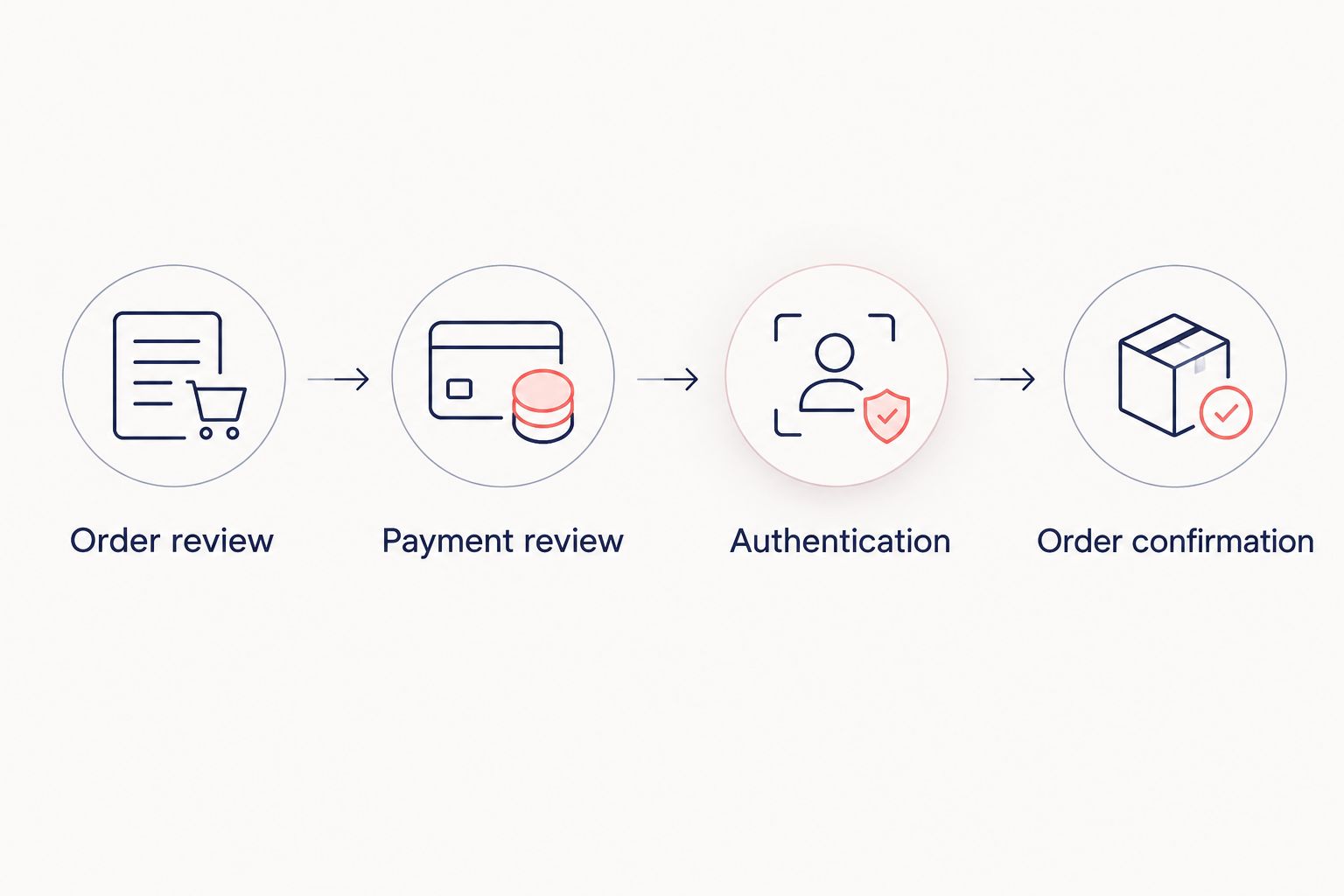
The payment sequence has distinct stages: Order review, Payment review, Authentication, and Order confirmation. Keep them separate when diagnosing a problem; a failure after authentication belongs to a different stage from an unverified card in Wallet.
Confirm the order independently of Wallet
Keep 2 records after a successful purchase: the retailer’s order confirmation and the bank’s transaction record. The former identifies what the seller has accepted; the latter helps you reconcile the payment.
Record the order reference and check that the confirmation identifies the intended watch. If the confirmation is incomplete, ask the seller for clarification before treating the purchase documentation as finished.
A transaction shown as pending in your banking app is not proof that the retailer has accepted the order. Conversely, do not submit another payment simply because an email has not arrived: first inspect the confirmation page, email folders, and order status where provided.
Expected result: you can connect the confirmed watch order to its payment record without relying solely on a screenshot of a successful device authentication.
Alternative workflow: pay from a Mac
You can also start an eligible online checkout on a compatible Mac. Use the authentication method offered by the supported setup, such as Touch ID on an equipped Mac or approval on a compatible nearby Apple device when prompted.
For this 2026 workflow, follow the actual checkout and device prompts rather than assuming every browser, Mac, and iPhone combination behaves identically. If Apple Pay is absent, establish device and merchant eligibility before changing the purchase itself.
| Checkout route | Best for | Advantage | Limitation |
|---|---|---|---|
| iPhone checkout | Buyers completing the purchase on their phone | Review and authentication stay on the handheld device | A smaller display requires careful review of watch and delivery details |
| Mac checkout | Buyers reviewing detailed order information on a larger screen | More room to compare the order summary with purchase documents | Authentication depends on the supported Mac and device setup |
Neither route changes the watch’s authenticity, condition, or accompanying documents. Choose the screen that lets you inspect the order clearly, then use the authentication method presented.
Complete the Mac purchase
- Open the retailer’s genuine checkout on your Mac and review the order.
- Select Apple Pay if it appears among the payment methods.
- Check the card, total, currency, and delivery information in the payment sheet.
- Authenticate using the method the device presents. If approval moves to another Apple device, review that device’s payment prompt before approving.
- Return to the retailer’s page and save the order confirmation.
Expected result: the Mac checkout shows a confirmed order and you retain the matching payment record. Approval on another device does not remove the need to check the original checkout page.
Troubleshooting Apple Pay watch purchases
Apple Pay does not appear at checkout
Check merchant acceptance before troubleshooting your card. A retailer’s support for ordinary card payments does not establish support for Apple Pay.
Confirm that your device and browsing setup support the checkout’s Apple Pay implementation. If the option remains absent, ask the retailer which payment methods apply to that order. Do not assume that changing cards will reveal a missing payment button.
The card cannot be added or verified
Resolve Wallet setup with the card issuer. Check that the card is supported and complete any requested verification through the issuer’s legitimate process.
A supported device cannot make an unsupported card eligible. Keep this issue separate from the watch retailer’s checkout: there is no benefit in repeatedly reopening an order while card setup remains incomplete.
Authentication succeeds, but payment is declined
Ask the issuing bank about the decline. Successful Face ID, Touch ID, or passcode authentication confirms your approval attempt; it does not require the bank to approve the transaction.
Check relevant spending controls and whether the bank needs further verification. After resolving the stated problem, confirm that no order or authorisation already exists before trying again. Do not repeatedly submit the same unchanged payment.
The bank shows a pending transaction, but no order appears
Establish the existing payment’s status before paying again. Check the retailer’s confirmation page and email, then contact the retailer with the order reference if one was generated.
Provide only the information needed to locate the attempt, such as the transaction date and the payment details the retailer specifically requests. Ask the bank about an unresolved authorisation; do not treat a pending entry as either a completed order or a confirmed failure.
The payment sheet shows the wrong card or address
Correct the payment sheet before authenticating. Saved Wallet information is convenient, but it still requires review for the current purchase.
If you already authorised an order with incorrect delivery details, contact the seller promptly to establish what can be changed. Do not assume that editing Wallet afterwards updates an existing order.
Customize your purchase workflow
Use Apple Pay for payment convenience, not as a substitute for purchase verification. For a Royal Watches luxury-watch purchase, confirm the checkout options and written order details directly before authorising.
If the retailer does not offer Apple Pay, compare the methods it actually accepts. The bank-transfer payment workflow explains a separate process; it is not a workaround for an unresolved Apple Pay authorisation.
Build your 2026 purchase file around the watch description, seller correspondence, invoice, payment record, and delivery documentation. Keep sensitive payment information out of shared folders and screenshots.
For an overseas delivery, settle the destination and documentation requirements before paying. The payment method does not determine customs treatment, insurance terms, or who is responsible for arranging shipment.
FAQ
Can I pay for a luxury watch in Dubai with Apple Pay in 2026?
You can use Apple Pay when the retailer offers it for your order, your device and card are supported, and the issuer approves the transaction. Confirm acceptance at the actual checkout before planning around this payment method.
Does Royal Watches accept Apple Pay?
Confirm Apple Pay acceptance directly with Royal Watches or check the payment methods displayed for your order. This guide does not establish that the retailer accepts Apple Pay.
Is there a special Apple Pay limit for buying a luxury watch?
Do not assume a universal luxury-watch limit. Your card issuer’s controls and the merchant’s payment setup determine whether the particular transaction can proceed.
Can I use a card issued outside the UAE?
A foreign-issued card must be supported in Apple Pay, accepted for the transaction, and approved by its issuer. Check relevant international-purchase controls with your bank before authorising.
Why did Apple Pay authenticate but my watch payment fail?
Device authentication and payment approval are separate stages. Check the checkout message and ask your issuing bank about a decline before submitting another attempt.
Does paying with Apple Pay prove a watch is genuine?
No. Apple Pay authorises a payment; it does not authenticate the watch, verify its condition, or establish the seller’s dealer status. Complete those checks independently before purchase.
What should I do if payment is pending but I have no confirmation?
Check the retailer’s order status before paying again. Contact the retailer to locate the attempt and ask your bank about the pending authorisation if the status remains unresolved.
One last thing
Authenticate the payment only after you have verified the purchase. The most useful final check in 2026 is not another look at Wallet: it is matching the watch reference on the order to the piece you agreed to buy.
Keep that reference beside the order confirmation. It gives you a concrete way to check the invoice and delivery documentation without mistaking a successful payment for a fully documented purchase.
Related guides
- Verifying a Rolex is authentic before buying in Dubai
- Shipping a luxury watch from Dubai abroad without customs issues
- Insuring your Rolex after buying it in Dubai
